





































































Sell Internationally
Sell your products internationally through our ecommerce platform to millions of buyers in the UK and other countries. Sendashopping is a global marketplace for trade and can help your business scale to the next level. With our platform you can manage, items, orders, purchases and chat with buyers. Start selling now for free.

How it works
-
1. Create a Listing
Sign up for free, create your listing and sell your items to our global audience.
-
2. Deliver your orders
Get notified when you get an order and use our system to discuss details with customers.
-
3. Get paid
Get paid on time, every time. Payment is available for withdrawal as soon as it clears.
Create a listing
- To create a listing on Sendashopping, click sell and start filling in the details of your product.
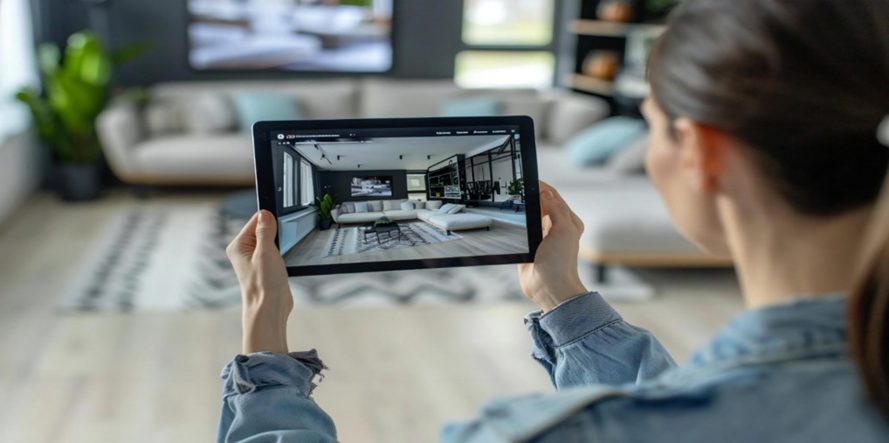
- Upload quality pictures which represent the item and take as many pictures as possible.
- Buyers are likely to buy from products that are from high resolution and great quality pictures as the items are sold as they are in the pictures.

Titles, descriptions, and categories
- Give the listing a good title that is informative and also linked to the search words that buyers use when they are searching for products on the website.
- Then give a description of the item that tells buyers all the information.
- A buyer is likely to buy when they are satisfied with the information given in a description.
- Wrong descriptions of the condition or state of product will result in higher returns from buyers.
- Then select the best category for the item
Price, delivery and options
- Give a fair price for the product that goes with the condition of the item.
- Set delivery options and delivery fees in settings so that buyers can decide the best delivery option available.
- Set location in My Profile so buyers can know where you are located for collection of items and for use in advanced search so that products are easily searchable.

Q&A
To post an item please go to the marketplace homepage and click Post. Upload or take picture of the Item when you click the picture icon. Write the title of the Ad, this should be short and simple and also easy for buyers to search, write a short description of the item. Please be explicit and mention everything so the buyers know exactly what they will buy. Put the price of the item and you can also put the condition of the item. Please make sure to put the delivery price in the settings if you deliver your items. If you are selling more than one item, put the quantity you have of the item. When a user buys from you, the quantity will be reduced by the amount bought and if the quantity goes to zero, the item will display Out of Stock. Once you are satisfied about the Ad, click Post Ad and your item will be posted.
To manage the item posted, please go to My profile and click Listings. Go to the item you want to manage and click manage. You can update the price of the item, add or subtract quantity, if the item is finished you can Mark as Sold and it will move to Sold Items or you can delete the item. If you mark the item as sold and later you have the item again and you want to resell it, go to Sold and click Mark as Active and the item will be reposted.
To chat with the seller about the condition or anything concerning the ad, please click on Chat at the bottom of the item and send your chat to the seller of the item. If after you make a purchase and you want to chat about the status of the order, you can go to My Profile then Purchases and click on the order. At the top right click the chat symbol and chat direct with the seller. You can also view the status of the order, the timeline by which the order should be delivered, or whether the seller has dispatched the item. You can also then also confirm if you received the order to complete the order.
When you receive an order for selling an item, the money goes to your Pending Balance wallet. As soon as the order is received, the timeline starts the countdown for the order to be completed. You have 4 days to fulfil the order. When you dispatch an order, please update the Order Status so that the buyer knows what is happening concerning their purchase. You can go to My Profile, then click on My Orders. Go to the Order, you can view the order, How much was paid and you can update the status of the order. When buyer receives the order and confirm that they have received the item, the timeline will stop and the order will be completed. The money will move from Pending Balance to Available balance and you will be able to withdraw the funds. If buyer does not confirm that the order is completed, please remind them via chat or wait for timeline countdown to finish then the money will be transferred to your available balance.
When you place an order and realise its no longer needed, please cancel the order as quick as possible to cancel the order before the countdown timer finishes. you have 4 days to cancel an order and after an order is completed, you will not be able to cancel it in the app. Please contact the seller and talk to them about the cancellation. This will depend on the sellers cancellation policy and a refund is not guaranteed. Once the order is cancelled the funds will be transferred back to the wallet of the buyer. Please note that transaction fees are not refundable as they are connected with the use of the app and the use of payment gateway platforms.
To be a verified user, you need to upload the requested KYC documents (Proof of ID and proof of address). If you are not approved, you will be able to upload and transfer money, but you will not be able to withdraw funds. Please go to the top side menu and click it and go to Complete Kyc. You will be able to add your address details and upload the required documents. Once these have been approved, your withdrawals will go ahead.
In order to keep the buyer updated, go the order and update the status when you dispatch the order or when you out to deliver it or have posted it. A notification email and status will be received by the buyer who can then mark the order as complete upon receiving the order. This will complete the order and the timer will reset to zero. You can also send messages on top of these updates so that the buyer is fully aware of what is going on.
To withdraw, go to the home screen and click withdraw. Enter the amount you wish to withdraw and select the bank account you wish to withdraw to. You will only be permitted to withdraw to your own account number. Withdrawals attract a 3% fee. Withdrawals take between 2-4 days depending on the bank processing times.
We charge certain fees for withdrawals, which include the transaction fees for the payment using cards and a withdrawal method fee. We incur fees when we use third party providers to process withdrawals and these are passed on to the user. Please check for the fees on the confirmation page.
To change your pin or password, settings and go to security. Select which one you need to change. If you change your password, you will be logged out and you must re-enter your changed password.
To add and store your bank card details for faster deposits, go to My Cards and click on the Add Card button. Fill in the card details and save. To use the card next time you want to deposit, select My Cards and choose the card to pay. To delete the card, swipe the card to the left and the delete button will come up.
To load funds onto your e-wallet, go to the home screen and click Add Money. Choose how much you want to pay and then choose the method of payment whether its debit/credit card or online banking. Debit/Credit You can only top up your account by a card registered in your name and address. Any attempt to use another person card might result in the funds being returned to the owner, less the fees and your account being deactivated. Online Banking You will be migrated to a payment page where you can enter your bank details. If the top up is successful, you will receive a notification and the wallet will be updated instantly.
To be paid straight into your e-wallet, either share your QR code with the person you wish to be paid from. They should download your QR code and go to Pay and click Add QR code from gallery. Your details will come up on their screen and they can pay you. Or show your QR code in My QR to the person and they can go to Pay and scan your QR code and then pay you. Its fun getting paid with Sendacash Pay.
To request money, go to Send and select the contact. The payment page will come, click Request From and enter how much you are requesting and then write a small message and the reason for the request. The receiver will receive the message in their chat. To pay all they need to do is click pay on the request and pay you. You can also go to My Chats and click Request in the chat.
To pay someone using QR codes, let the person who you wish to pay, show you their QR code (It is in My QR Code, In Pay click the top right QR code). Then go to Pay and scan their QR code on their phone. Their details will come up on your screen and you can put the money you want to pay and click the Right arrow. Confirmation of payment will go to you and the person you paid.
Merchants who are signed up with Sendacash Pay display a QR code with the business name on it. To pay, click Pay and scan the QR code. Before you pay, make sure the business name is the one that comes on the payment page. Then put how much you are paying and confirm.